
Smart TV • 2026 Guide 📺
Youcine Smart TV App: Download & Setup Guide for All TVs
App
YouCine
Works on
Android TV • Google TV • Fire TV
Samsung/LG/Roku
Workaround needed
Price
Free
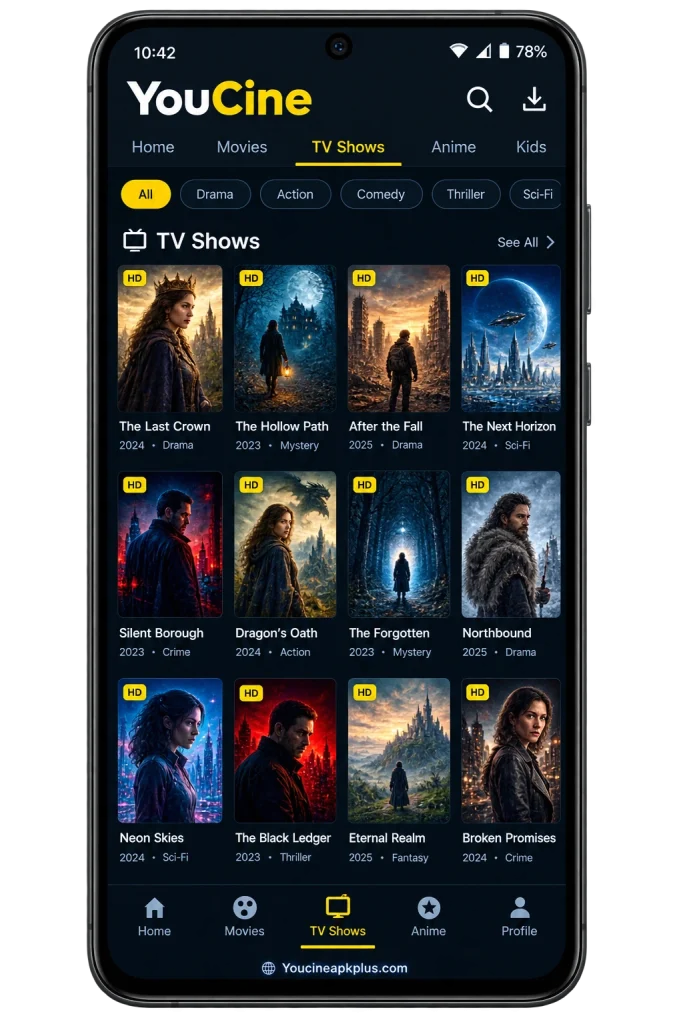
The sofa is comfy, the TV is huge, and the remote is already in your hand. The only thing missing is the app. So you search for Youcine for Smart TV and find a pile of guides that all sound confident but never mention which TVs can actually run it. That detail matters more than anything else. A smart TV is not one thing. Some run Android, some run Amazon’s system, and some run locked-down platforms that will never open an APK file. Pick the wrong path and you waste an evening.
This Youcine for Smart TV guide starts with the question most pages skip: what is your TV running? From there you get exact setup steps for Android TV, Google TV and Fire TV, plus honest workarounds for Samsung, LG and Roku. If you want the phone version instead, read our Youcine APK download guide.
Quick Answer: Does Youcine Work on Smart TVs?
It depends entirely on the operating system, not the brand on the front.
|
TV or device |
APK works? |
Notes |
|---|---|---|
|
Android TV and Google TV (Sony, Philips, Xiaomi, many TCL and Hisense models) |
Yes |
Install through Downloader or a USB drive |
|
Android TV boxes (Nvidia Shield, Mi Box and similar) |
Yes |
The most flexible option |
|
Yes |
Needs Developer Options and Downloader |
|
|
No |
Sideloading is reported to be unsupported |
|
|
Samsung (Tizen) |
No |
Use a streaming stick or screen mirroring |
|
LG (webOS) |
No |
Use a streaming stick or screen mirroring |
|
Roku TVs and players |
No |
Use a different device |
Brands mix platforms across models, so check your own TV rather than trusting the brand name. The next section shows how.
In This Guide
How to Find Out What Your TV Runs
A two-minute check that saves you from following the wrong instructions.
- Press the home button and look at the main screen. Google TV and Android TV show a recognizable Google-style home screen.
- Open Settings, then About or System, and read the operating system or software name.
- Look up the exact model number printed on the back of the TV or in the settings menu.
- Check the box or the remote. A Fire TV remote has an Alexa button, and a Roku remote has a clearly labeled Roku logo.
If the name says Android TV, Google TV or Fire OS, keep reading. If it says Tizen, webOS or Roku OS, skip ahead to the workaround section.
Youcine for Smart TV Requirements
What your TV or streaming box needs before you start.
|
Requirement |
Recommended |
|---|---|
|
Operating system |
Android TV or Google TV on Android 5.0 or higher, or Fire OS that allows sideloading |
|
Memory |
2 GB of RAM or more for smooth browsing |
|
Free storage |
Several hundred MB, and more on boxes with only 8 GB |
|
Internet speed |
About 10 Mbps for HD streams |
|
Installer |
Downloader app or a USB drive |
|
Remote |
Standard remote, plus your phone as a backup |
Small streaming sticks fill up quickly. If your device is nearly full, delete unused apps first, because a failed install is almost always a storage problem.
Method 1: Install Youcine on Android TV and Google TV
The simplest route for Youcine for Smart TV, since these systems are built to run APK files.
Step 1: Get an Installer App
Open the Play Store on your TV, search for Downloader by AFTVnews and install it. A file manager works too. Both let you open an APK that is not in the store.
Step 2: Allow Unknown Apps
Open the TV settings and look for the security or apps section, often under Device Preferences. Allow Downloader to install unknown apps. The exact path differs between TV brands and Android versions.
Step 3: Download and Install the APK
- Open Downloader and enter the download link from the verified Youcine APK download page.
- Wait for the file to finish downloading.
- Select Install when the prompt appears.
- Choose Open to launch Youcine, or Done to return to Downloader.
- Delete the installer file to free up space.
Alternative: Install From a USB Drive
Copy the APK to a USB drive from your computer, plug it into the TV and open it with a file manager. This helps when typing a link with the remote is a pain.
Alternative: Send the File From Your Phone
Apps such as Send Files to TV move an APK from your phone to the TV over Wi-Fi. Install the app on both devices, pick the file on your phone and accept it on the TV.
Method 2: Install Youcine on Fire TV Stick and Fire TV Cube
Fire TV devices that run Fire OS can install the APK through Downloader, but newer sticks that run Vega OS cannot. Check your model first, then follow the full walkthrough in our Youcine for Firestick guide.
Method 3: Youcine on Samsung, LG and Roku TVs
These platforms cannot install Youcine for Smart TV directly, but you still have options.
Why the APK Will Not Install
Samsung runs Tizen, LG runs webOS and Roku runs its own system. None of them can open Android apps, and there is no setting that changes that. Any guide telling you otherwise is guessing.
Option 1: Plug In a Streaming Device
This is the best fix. A Fire TV Stick on Fire OS or an Android-based streaming device plugs into an HDMI port and gives your TV a second brain. After that, follow Method 1 or Method 2 above.
Option 2: Mirror Your Android Phone
If Youcine is already on your phone, you can mirror the screen using Samsung Smart View, LG Screen Share or Miracast, depending on the TV. The app still runs on the phone, so expect some delay and battery drain.
Option 3: Connect a Computer With HDMI
A laptop with an HDMI cable turns any TV into a big monitor. Our Youcine for PC guide shows how to run it on Windows first.
A Note on Casting
Whether you can cast straight from the app depends on the version, so test it before you rely on it.
After Installation: First Launch Setup
A few quick steps to get Youcine for Smart TV ready for the couch.
- Allow only the permissions the app really needs.
- Choose your preferred video quality, starting with HD rather than the highest setting.
- Set subtitles and audio before you start a movie.
- If your build offers QR login, scan the code with your phone to pair it before the code expires.
Features of Youcine on Smart TV
What Youcine for Smart TV offers on a television, explained one feature at a time.
Features differ between builds, titles and sources, so treat this list as a guide to what you can typically expect on a TV.
Cinema-Style Big Screen
Movies, anime and live matches look far more impressive on a large TV. Details are sharper, subtitles are readable from the sofa, and the whole family can watch together without anyone squinting at a phone.
Remote-Friendly Layout
On TV-ready builds, the menus respond to the arrow keys and the select button. You can browse categories, open titles and start playback without a mouse, as long as your build was designed for television use.
Video Quality That Fits Your Screen
You can usually choose between SD, HD and Full HD, depending on the source. A modern TV benefits from the higher settings, while an older stick may run better on a lower one.
Subtitles for the Whole Room
Many titles offer subtitle tracks you can switch from the player menu. Larger TV text helps everyone follow anime, Korean dramas and foreign films, though the exact languages depend on each title and source.
Live Sports on the Big Screen
The sports and live channel sections suit a large display best. Football, cricket and wrestling feel more exciting on a TV, although live stream quality varies from match to match and from source to source.
QR Login Without Typing
Where a build supports it, you can scan a QR code with your phone instead of typing a password with the remote. It saves time, but the code expires quickly, so scan it promptly.
Quick Source Switching
Many titles come with several streams. If one is slow, lacks subtitles or fails to play, you can switch to another from the player and carry on, instead of waiting for a stuck video to recover.
External Player Option
Some builds can hand a video to an outside player such as VLC or MX Player. This helps when the built-in player has trouble with a subtitle file, an audio track or an odd video format.
Family-Friendly Kids Corner
A dedicated area groups cartoons and family titles, which makes it easier to find something suitable on the shared TV. It is not a full parental control tool, so supervise young viewers yourself.
Resume Where You Stopped
Some versions remember recently played titles, so you can continue a movie or episode without hunting for the right spot. On a shared TV, clear the history regularly if you want to keep viewing private.
Small Install, Light on Storage
The APK is only around 43 MB because the videos stay online. That matters on streaming sticks and cheap boxes with limited space, where large apps leave little room for anything else.
Works Across TV Platforms
Youcine runs on Android TV, Google TV and Fire OS devices, which covers a wide range of TVs, boxes and sticks. Samsung, LG and Roku TVs need a separate streaming device because they cannot install APK files.
Remote Control Tips for Youcine on TV
Phone-style apps can feel awkward with a remote, so these tricks help with Youcine for Smart TV.
Use the Directional Pad
Most TV builds are designed for the arrow keys and the select button. Use Back to exit menus rather than closing the app.
If the Cursor Does Not Move
Some builds are really phone apps and ignore arrow keys. On Fire TV, a mouse toggle app can give you an on-screen pointer. On Android TV, a Bluetooth mouse or a remote app on your phone can do the same job.
Use Your Phone as a Remote
Both Google and Amazon offer phone remote apps. They help with typing searches and passwords, which is slow with a standard remote.
Best TV Settings for Streaming Youcine
Small changes that make Youcine for Smart TV streams look and sound better.
- Picture mode: choose Movie or Cinema for films, and Standard for sports.
- Motion smoothing: turn it off for movies if everything looks too smooth.
- Connection: use Ethernet if you can, or 5 GHz Wi-Fi if you cannot.
- Video quality: step down one level if you see constant buffering.
- Sound: switch to a night or dialogue mode if voices sound weak.
Network Tips for Smoother Streaming on TV
Most Youcine for Smart TV buffering is a network problem, so start here before changing app settings.
Wi-Fi or Ethernet?
A cable beats Wi-Fi almost every time. If your router is far from the TV, a powerline adapter or a mesh node can give a steadier signal than a weak wireless connection.
Pick the Right Wi-Fi Band
The 5 GHz band is faster but covers less distance, while 2.4 GHz travels further but is slower and more crowded. If the TV is in the same room as the router, choose 5 GHz.
Reduce Competing Traffic
Large downloads, game updates and video calls on other devices can starve a stream. Pause them during movie time, and restart the router if speeds feel off.
Common Youcine TV Problems and Fixes
Troubleshooting the Youcine for Smart TV issues that show up most on televisions.
Install Option Is Blocked
Go back to the unknown apps setting and make sure Downloader or your file manager has permission. Newer systems ask for permission per app, not once for everything.
App Opens, Then Closes
Clear the cache in the TV’s app settings. If that fails, restart the TV and reinstall the app. Low free memory is a common cause on small sticks.
Constant Buffering
Lower the video quality, restart the router and move to Ethernet or 5 GHz Wi-Fi. Old streaming sticks struggle with HD.
Remote Will Not Navigate
Try a mouse toggle app, a Bluetooth mouse or a phone remote. Some builds are not designed for directional navigation.
Storage Is Full
Delete unused apps and the installer file. Consider a USB drive for extra space if your device supports it.
Audio Out of Sync or Black Screen
Switch to another source in the player, restart the app and check the TV’s sound output setting. A power cycle of the TV and the streaming device clears many glitches.
Is Youcine Safe on a TV?
TVs hide a lot from you, so be extra careful what you install.
A TV gives you less visibility than a phone. Fewer menus show permissions, and there is often no easy security scanner. That makes the file you choose even more important.
- Download the APK on a phone or PC first and scan it on VirusTotal.
- Move it to the TV with a USB drive or file transfer app.
- Do not log into your main Google, Amazon or streaming accounts inside the app.
- Delete the installer and switch off the unknown apps permission when you finish.
For the full checklist, see our Is YouCine Safe? guide.
Smart TV vs Fire Stick vs TV Box
A quick Youcine for Smart TV comparison so you can pick the right device if you are still choosing.
|
Factor |
Android or Google TV |
Fire TV on Fire OS |
Android TV box |
|---|---|---|---|
|
APK support |
Yes |
Yes, with Developer Options |
Yes |
|
Ease of setup |
Easy |
Medium |
Easy |
|
Storage |
Varies by TV |
Limited on small sticks |
Often more room |
|
Remote navigation |
Good |
Good |
Good |
|
Best for |
Built-in convenience |
Cheap upgrade for any TV |
Power users. |
Free Legal Apps for Your Smart TV
Apps you can install from your TV’s own store without any workaround.
- Pluto TV — free live channels and on-demand titles with ads.
- Tubi — a large free library of movies and series.
- YouTube — includes free movies and plenty of official channels.
- Plex — provides a free ad-supported catalog, plus your own media.
Many of these are available across several TV platforms, but check your own TV’s app store, because availability depends on the brand and your region.
Youcine for Smart TV FAQs
Answers to the questions TV owners ask the most.
Can I install Youcine on a Samsung Smart TV?
Not directly. Samsung TVs run Tizen, which cannot open APK files. Use a Fire TV Stick or an Android TV device, or mirror your phone.
Can I install Youcine on an LG TV?
The answer is the same. LG’s webOS does not support APK installs, so you need a separate streaming device.
Does Youcine work on Fire Stick?
It can, on Fire Stick models that run Fire OS. Newer Vega OS sticks cannot install APK files. See our Youcine for Firestick guide.
Do I need a TV box?
Only if your TV does not run Android TV, Google TV or Fire OS. A cheap streaming stick or box fixes that.
Why do I need Downloader?
Smart TVs have no proper web browser for downloading files. Downloader acts as a tiny browser and installer in one.
Can I use Youcine on a Roku?
No. Roku does not support Android apps, so you would have to mirror a phone or use another device.
Can I cast Youcine from my phone to the TV?
It depends on the build and your TV. Test it, and fall back to screen mirroring if the option is missing.
Is Youcine safe on a smart TV?
It depends on the file. Scan it on another device first, avoid your main accounts, and delete the installer afterwards.
Final Verdict: Is Youcine Worth Setting Up on Your TV?
My honest take after looking at every TV platform.
Youcine for Smart TV is a great fit if you already have an Android TV, a Google TV, or a Fire TV Stick on Fire OS. If your TV runs Tizen, webOS, or Roku OS, add a Fire TV Stick or an Android TV box instead of fighting the built-in system. Youcine offers a large library of movies and TV shows, but titles can change without warning, so do not plan your viewing around one title.
Want to try it elsewhere? See our guides for Youcine on PC and Youcine on iPhone, or head back to the main Youcine APK page.
Disclaimer: This article is for information only. We do not host or promote copyrighted content. You are responsible for following the copyright laws of your country.