

YouCine QR Code Login: How to Sign In on TV Without Typing (2026)
Typing an email and a long password with a TV remote is one of the most annoying jobs in modern life. One letter at a time, one wrong click, and you start over. No wonder people search for YouCine QR code login the moment they get the app onto a TV.
The idea is simple. Your TV shows a code, your phone scans it, and the TV signs in on its own. When it works, it takes about ten seconds. When it does not, you are staring at a square that will not scan and an expiry timer that keeps resetting.
This guide explains how YouCine QR login works, what you need before you start, the exact steps for your TV or Fire Stick, a fix for every common failure, and one safety rule that most pages skip. For the app itself, see our YouCine APK page.
Quick Answer: What Is YouCine QR Code Login?
The short version, with what it can and cannot do.
YouCine QR code login lets you sign a TV, TV box or Fire Stick into your existing account by scanning a code with a phone that is already signed in. It is a shortcut for logging in, not a way to create an account.
|
Question |
Answer |
|---|---|
|
What does it do? |
Signs a TV into an account you already have |
|
Does it create an account? |
No. You need an account first, usually made on your phone |
|
What do you need? |
The app on both devices, a logged-in phone and an internet connection |
|
Where is it used? |
On Smart TVs, Android TV boxes and Fire TV devices |
|
Is it in every version? |
No. Some builds have it and some do not |
The steps below follow the pattern described by most YouCine listings. Menu names can differ between builds, so check them against the version you installed.
In This Guide
- Quick Answer: What Is YouCine QR Code Login?
- Why Use QR Login Instead of Typing?
- What You Need Before You Scan
- How to Log In to YouCine With a QR Code (Step by Step)
- The Safety Rule Most Pages Skip
- Three Codes People Confuse With YouCine QR Login
- YouCine QR Code Not Working? Fixes for Every Problem
- What If YouCine QR Login Is Missing From Your Version?
- YouCine Login Methods Compared
- How to Create an Account Before Using QR Login
- YouCine QR Login on TV, TV Box and Fire Stick
- YouCine QR Code Login FAQs
- Final Verdict: Is YouCine QR Login Worth Using?
Why Use QR Login Instead of Typing?
Five practical reasons the shortcut is worth setting up.
No Typing With a Remote
Entering an email address and password one letter at a time is slow and error-prone. QR login removes the typing completely, so you sign in by pointing your phone at the screen instead.
Faster Setup on New Devices
If you switch between a TV, a TV box and a Fire Stick, each device needs signing in. A quick scan takes seconds, which makes setting up a new device far less tedious.
Fewer Password Mistakes
Typos in passwords cause failed logins and lockouts. Scanning avoids that, because you never type the password on the TV, which also keeps it away from prying eyes in a shared room.
Syncs Your Account
Signing in on the TV connects it to your account, so features such as history and favorites can appear there, as long as your build supports account syncing. Support differs between versions.
Simple for the Whole Family
Not everyone is comfortable with long passwords and on-screen keyboards. A scan-and-confirm flow is easier to explain, and it works well when you help a relative set up their TV.
What You Need Before You Scan
A quick checklist that prevents most failures.
- A YouCine build that includes QR login.
- YouCine installed on the TV, TV box or Fire Stick.
- YouCine installed on your phone and already signed in to your account.
- Both devices connected to the internet, ideally on the same Wi-Fi network.
- A phone camera that works, with permission for the app to use it.
If you have not installed the app on your TV yet, our Smart TV guide and Fire Stick guide cover installation first.
How to Log In to YouCine With a QR Code (Step by Step)
The full process from the TV screen to a signed-in account.
Step 1: Open the Login Screen on Your TV
Launch YouCine on your TV, TV box or Fire Stick and go to the login or account screen. Look for the QR or scan option alongside the other sign-in methods, and select it.
Step 2: Wait for the Code to Appear
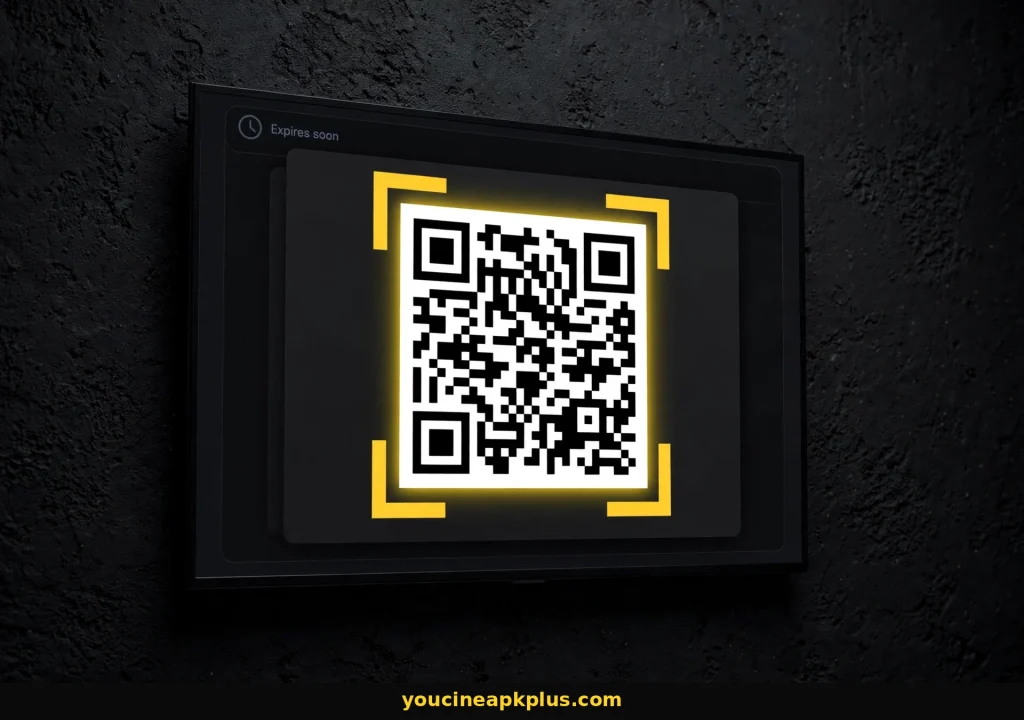
A square QR code should show on the TV. Leave it on screen. These codes are usually temporary, so do not walk away and come back ten minutes later.
Step 3: Open YouCine on Your Phone
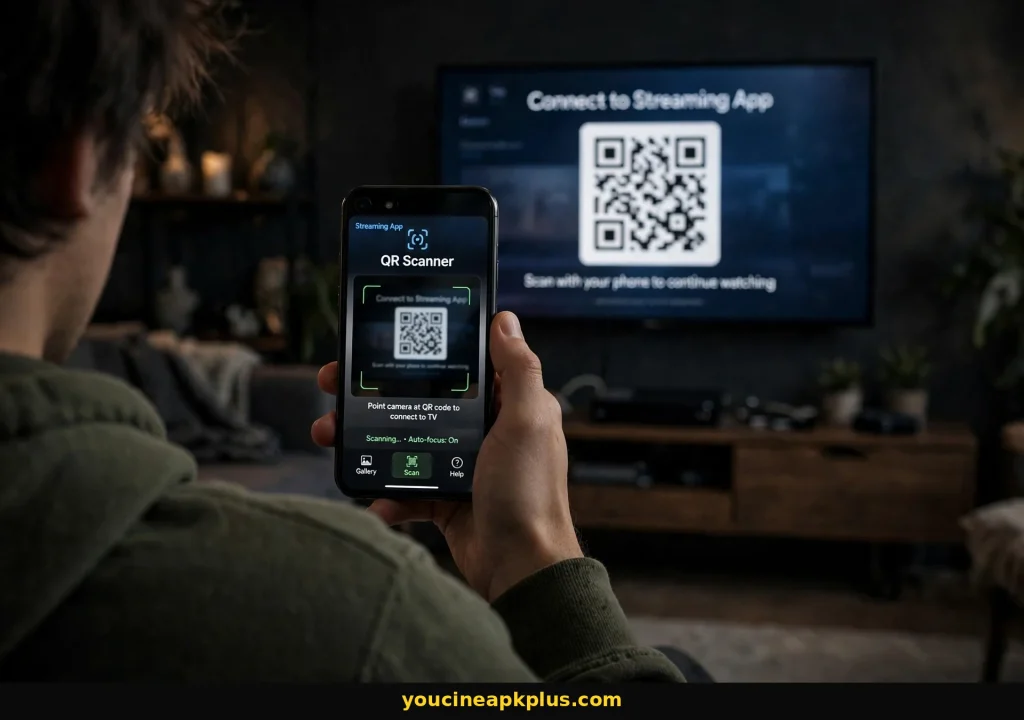
Open the app on a phone that is already signed in. Go to your profile or account area and look for a scan or QR scanner option.
Step 4: Scan the Code
Point the phone camera at the QR code on the TV. Hold the phone steady about the length of an arm away, and make sure the whole code fits inside the frame.
Step 5: Confirm on Your Phone
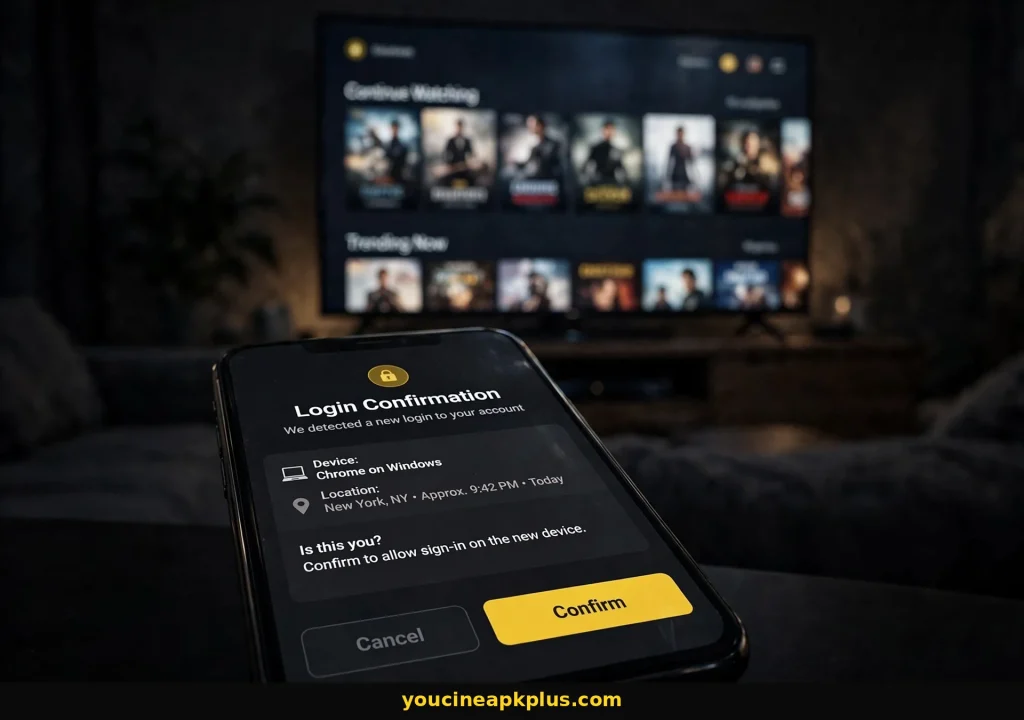
Your phone may ask you to approve the login. Read the prompt, and only confirm if you started the sign-in yourself. This confirmation is what actually gives the TV access to your account.
Step 6: Check the TV
Within a few seconds the TV should sign in on its own. If it does not, refresh the code and try again, or move to the fixes below.
The Safety Rule Most Pages Skip
A login QR code is a key, not a link, so treat it like one.
Scanning and confirming a login code gives another device access to your account. That is the whole point, and it is also the risk. Scammers use fake login codes to trick people into signing them in.
- Only scan codes on your own TV screen, which you started yourself.
- Never scan a login code sent in a message, posted in a group or shown in a video.
- Never approve a login prompt you did not start. Cancel it and change your password.
- Do not use a main account. Use a separate email and a unique password for any streaming app like this.
- Remove devices you do not recognize if your account lists connected devices.
For the wider picture on keeping your phone and accounts safe, read our YouCine safety guide. You can also check your Google account with the Google security page.
Three Codes People Confuse With YouCine QR Login
They look similar, but they do very different things.
|
Code |
What it does |
How to treat it |
|---|---|---|
|
Login QR code |
Signs a device into your existing account |
Scan only on your own TV screen |
|
Downloader code or link |
Opens a download page inside the Downloader app |
Use only a source you trust, then scan the file |
|
QR code on a download page |
Claims to give you the app or a “working version” |
Avoid it. You cannot see where it leads |
If a QR code promises a free download or a fixed version, skip it. Typing a link you trust is safer than scanning a code that hides its destination.
YouCine QR Code Not Working? Fixes for Every Problem
Work through these in order, because the quick ones come first.
The Code Will Not Scan
Clean your camera lens, hold the phone steady and move closer or farther until the code fits the frame. If the TV is bright or glossy, reduce reflections. Use the scanner inside YouCine rather than a random scanning app.
The Code Keeps Expiring
Codes expire for security. Refresh the code and scan it right away. If your connection is slow, the code can time out before the phone responds, so check your Wi-Fi.
I Cannot Find the Scanner on My Phone
Look inside your profile or account settings, and check that the app is updated. If your build has no scan option, QR login may simply not be included. See the section below for what to do.
The Camera Will Not Open
Open your phone settings, go to Apps, YouCine, Permissions and allow the camera. Restart the app and try again.
The Phone Scans, but the TV Does Not Sign In
Make sure both devices are online and that the phone is signed in to the same account you want on the TV. Restart both apps and repeat the process with a fresh code.
It Says Invalid or Login Failed
Refresh the code, update the app on both devices and check your date and time settings. A wrong clock can break secure connections.
The App Crashes When I Open the Scanner
Clear the cache under Settings, Apps, YouCine, Storage, then reopen it. If the problem began after an update, try the fixes in our YouCine not working guide.
I Am Signed Out Again After a While
Some builds ask you to sign in again after updates or clearing data. If it happens constantly, check for a corrupted installation and reinstall a clean, scanned copy.
What If YouCine QR Login Is Missing From Your Version?
Not every build includes it, and that is normal.
QR login is not a guaranteed feature. Older builds, modified files and some TV versions leave it out. If you cannot find it, check whether you are running an old version, and update from a trusted, scanned file. If an update is not an option, you can still sign in another way. Listings mention email login and, on some builds, Google or phone number sign-in. Our old version guide explains how version differences can change which features you get.
YouCine Login Methods Compared
How QR login stacks up against the other ways to sign in.
|
Method |
Speed |
Best for |
Watch out for |
|---|---|---|---|
|
QR code |
Fast |
TVs and Fire Stick |
Fake codes and expiry |
|
Email and password |
Slow on a TV |
Phones |
Weak or reused passwords |
|
Google sign-in |
Fast |
Phones |
Do not use your main account |
|
Phone number |
Medium |
Phones |
SMS delays and privacy |
Not every build offers every method, so use whichever ones you actually see on your login screen.
How to Create an Account Before Using QR Login
QR login needs an account that already exists.
- Open YouCine on your phone and tap the profile or account icon.
- Choose Sign up or Register.
- Enter your email and a strong, unique password, then confirm any verification message.
- Sign in on the phone and check that you are logged in.
- Now use the QR option on your TV.
Use a spare email address rather than your main one, and keep the password different from anything else you use.
YouCine QR Login on TV, TV Box and Fire Stick
Small differences between devices.
Smart TV and Android TV
The scan flow is the same. Use a stable Wi-Fi connection and make sure the TV clock is correct. For installation help, read our Smart TV guide.
Fire Stick
The process works the same, but small sticks can be slow, so give the screen a moment to refresh. If the stick is nearly full, free some storage first. Our Fire Stick guide has the details.
TV Boxes
Most boxes behave like Android TV. If the code loads slowly, restart the box and try again.
YouCine QR Code Login FAQs
Quick answers to the questions people ask most.
Final Verdict: Is YouCine QR Login Worth Using?
My bottom line for TV and Fire Stick users.
If your build has it, QR login is the easiest way to sign in on a TV. It saves you from the on-screen keyboard and takes only seconds when everything is set up properly. Just remember the rule: scan only the code on your own screen, never one that someone sends you, and keep your main accounts out of it. If the option is missing or keeps failing, a normal email login still gets the job done.
Need more help? Read our YouCine for Smart TV guide and YouCine not working guide, or head back to the main YouCine APK page.
Disclaimer: This article is for information only. We do not host or promote copyrighted content. You are responsible for following the copyright laws of your country.


