

How to Install YouCine on Smart TV: Step by Step (2026)
You have the APK, the remote and a free evening. You open the TV settings, search for an install button, and find nothing. That moment is when most people realize that installing YouCine on a Smart TV is not one process. It is several, and which one you follow depends on the brand and system on the back of your TV.
This guide is a pure How to Install YouCine on Smart TV. You will pick your TV type, follow the steps that match it, and finish with a working app, or a clear answer about why it cannot work and what to do instead. No theory, just the install.
If you want to understand which TVs support YouCine and why, read our YouCine for Smart TV overview first. If you just want to install it, keep going.
Step 0: Find Out Which System Your TV Runs
The brand name on the front does not decide anything. The system inside does.
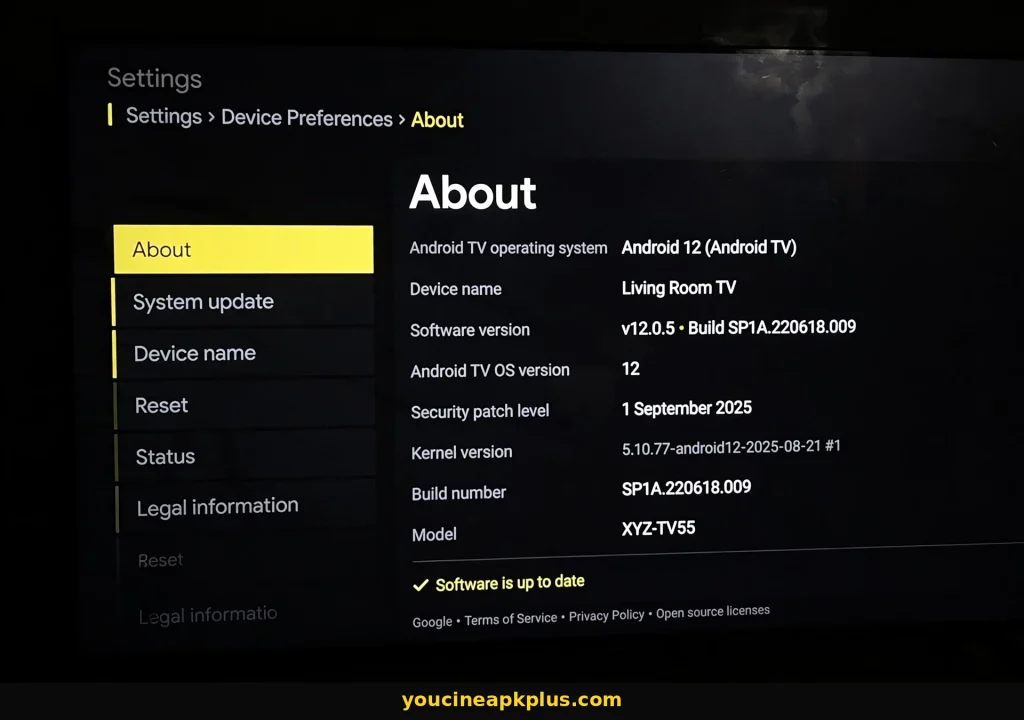
- Press the Home or Settings button on your remote.
- Open Settings, then About, System or Device information.
- Read the operating system or software name.
- If the name is unclear, look up the exact model number from the back of the TV or the settings menu.
Brands mix systems across models, so always check your own TV. Skip to the section that matches your result.
|
System name |
Common on |
Can it install an APK? |
|---|---|---|
|
Android TV or Google TV |
Sony, Xiaomi, Philips (some), TCL and Hisense (some) |
Yes |
|
Fire TV (Fire OS) |
Amazon, Insignia, Toshiba and some Panasonic or TCL |
Yes, with Developer Options |
|
Tizen |
Samsung |
No |
|
webOS |
LG |
No |
|
Roku OS |
Roku TV models from several brands |
No |
|
VIDAA |
Some Hisense models |
No |
|
Titan OS |
Some newer Philips models |
No |
|
tvOS |
Apple TV |
No |
In This Guide
- Step 0: Find Out Which System Your TV Runs
- Before You Install: Get Everything Ready
- How to Install YouCine on Android TV and Google TV
- How to Install YouCine on Fire TV Smart TVs
- Samsung Smart TV: Can You Install YouCine?
- LG Smart TV: Can You Install YouCine?
- Roku TV, Hisense VIDAA, Philips Titan OS and Apple TV
- After You Install: First Launch Checklist
- Common Install Errors on Smart TV and How to Fix Them
- How to Update or Uninstall YouCine on a Smart TV
- Is It Safe to Install YouCine on a Smart TV?
- Free Legal Apps You Can Install on Any Smart TV
- How to Install YouCine on Smart TV FAQs
- Final Verdict: The Easiest Way to Install YouCine on a Smart TV
Before You Install: Get Everything Ready
Five minutes of preparation prevents nearly every failure.
- A checked APK. Download it on a phone or computer first and scan it on VirusTotal.
- Free storage. Aim for at least a few hundred MB on the TV, and more on boxes with 8 GB.
- A stable connection. Wi-Fi on 5 GHz or Ethernet makes the download faster.
- Your remote with fresh batteries, plus your phone as a backup remote.
- An installer tool. Downloader, a USB drive or a file-sending app, depending on the method.
How to Install YouCine on Android TV and Google TV
The easiest route, and the one that works on most Sony, Xiaomi, Philips and TCL models.
Method 1: Install With the Downloader App (Recommended)
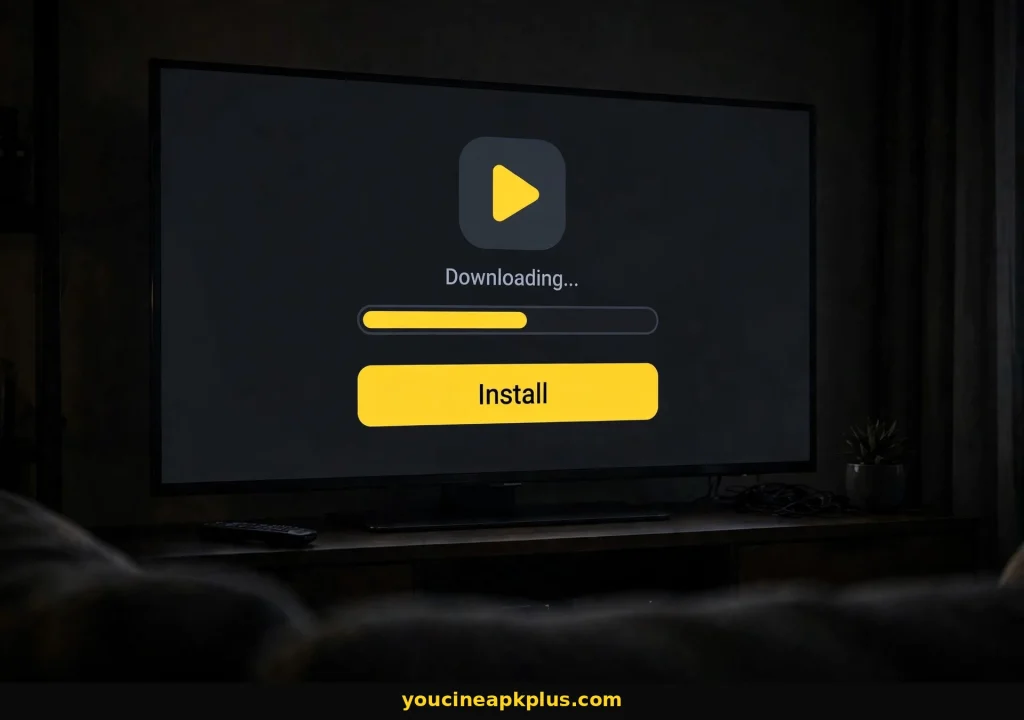
- Open the Google Play Store on your TV and search for Downloader. Select the app by AFTVnews and install it.
- Open Settings and look for the security or apps section. It is often under Device Preferences, Apps or Security and restrictions.
- Find the option for unknown sources or Install unknown apps, and allow it for Downloader. Menu names differ by brand and Android version.
- Open Downloader and type the link to the YouCine APK into the URL box.
- Select Go and wait for the download to finish.
- When the install screen appears, select Install.
- Choose Open to launch YouCine, or Done to go back to Downloader.
- Delete the installer file when Downloader offers to, to save space.
Method 2: Install From a USB Drive
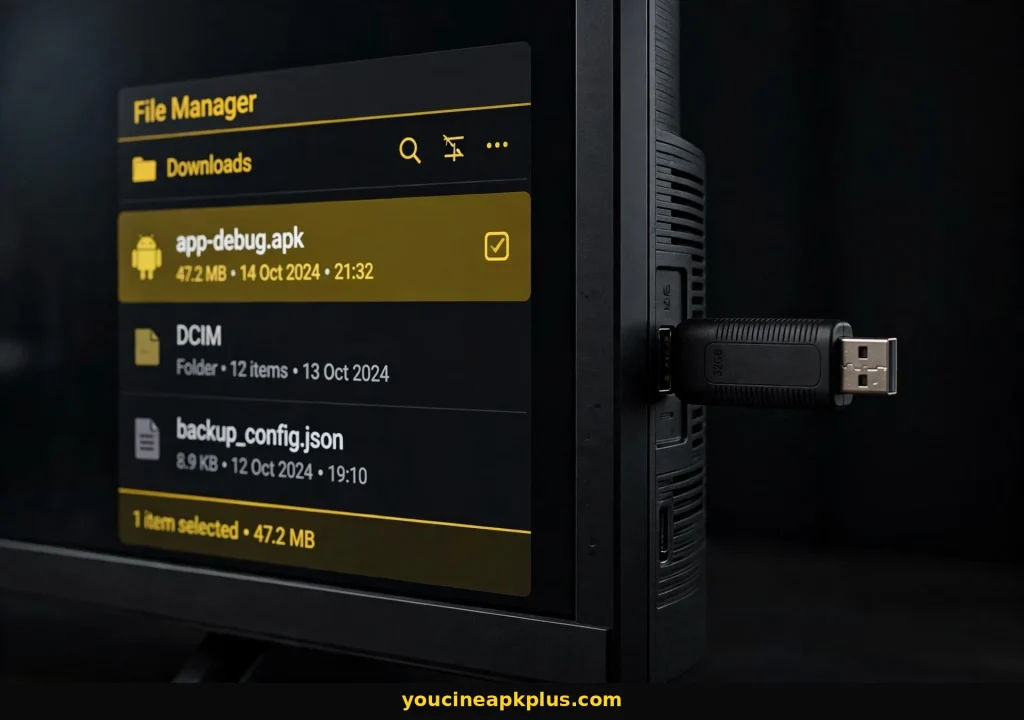
- Copy the APK to a USB drive on your phone or computer. A FAT32 or exFAT drive works best.
- Plug the drive into the TV and open a file manager app. If your TV has none, install one such as X-plore from the Play Store.
- Browse to the USB drive, select the APK and allow unknown sources for the file manager when asked.
- Select Install, then Open.
Method 3: Send the File From Your Phone
- Install a file-sending app such as Send Files to TV on both your phone and your TV.
- Open it on the TV and choose Receive. Open it on the phone and choose Send.
- Pick the APK on your phone and send it. Wait for the transfer to finish.
- Open the received file on the TV and select Install.
Method 4: Advanced Install With ADB
If the TV has no Play Store or Downloader will not run, you can install over your home network from a computer. Turn on Developer options by tapping the build number in About several times, then switch on network or USB debugging. Replace the address below with your TV’s IP address:
adb connect 192.168.1.50:5555
adb install youcine.apk
This is the most fiddly method, so use it only when the others fail.
How to Install YouCine on Fire TV Smart TVs
For Insignia, Toshiba, Amazon and other TVs with Fire TV built in.
These TVs run Fire OS, so the process matches a Fire Stick. In short, you install Downloader from the Amazon Appstore, unlock Developer Options by clicking the device name in Settings, My Fire TV, About, then allow Downloader to install unknown apps and install the APK by link.
The full walkthrough, with fixes for hidden menus and storage problems, is in our YouCine for Firestick guide. Check that your device is on Fire OS, because newer Vega OS sticks cannot install APK files.
Samsung Smart TV: Can You Install YouCine?
Short answer: not directly. Here is what works instead.
Samsung TVs run Tizen, which cannot open APK files. There is no hidden setting or developer mode that changes this for a normal user, so any guide promising a direct install is guessing.
Option 1: Plug In a Streaming Device
Connect a Fire TV Stick running Fire OS, or an Android TV box, to an HDMI port. Then follow the Android TV or Fire TV steps above on that device.
Option 2: Mirror From an Android Phone
Use Smart View on your Samsung TV to mirror your phone screen. YouCine runs on the phone while the TV shows the picture. Expect a small delay and some battery drain.
Option 3: Connect a Laptop by HDMI
A laptop running YouCine through an emulator can show on the TV through an HDMI cable. See our YouCine for PC guide for that setup.
LG Smart TV: Can You Install YouCine?
LG’s webOS has the same limit, with the same ways around it.
LG TVs run webOS, which does not support APK files. You cannot sideload an Android app onto an LG TV through a setting or a USB drive.
- Add a streaming device such as a Fire TV Stick on Fire OS or an Android TV box.
- Use Screen Share to mirror an Android phone that already runs YouCine.
- Use an HDMI cable from a computer.
- Install a legal app from the LG Content Store, such as Tubi or Pluto TV, where available.
Roku TV, Hisense VIDAA, Philips Titan OS and Apple TV
Other platforms that cannot install an APK.
Roku TV
Roku OS does not support Android APK files. Use a different streaming device, or choose from the free legal channels in the Roku Channel Store.
Hisense With VIDAA
Some Hisense models run VIDAA instead of Google TV. VIDAA cannot install APK files, so a streaming stick or box is the only practical fix.
Philips With Titan OS
Some newer Philips models use Titan OS rather than Android TV. Check your system first, because older Philips models may still run Android TV and work.
Apple TV
tvOS cannot install APK files at all. The only workaround is mirroring from a phone, and an iPhone cannot run the APK either. See our YouCine for iOS guide.
After You Install: First Launch Checklist
A few quick steps once YouCine appears on your TV.
- Open the app and allow only the permissions it genuinely needs.
- Choose a video quality that matches your internet, starting at HD.
- Set your subtitle and audio language before you start a movie.
- Sign in if you want your history and favorites. The QR code login guide shows how to pair your phone.
- Switch the unknown apps permission back off for Downloader or your file manager.
Common Install Errors on Smart TV and How to Fix Them
Match your error to the fix.
|
Problem |
Likely cause |
Fix |
|---|---|---|
|
Install button is blocked |
Unknown sources is off for that app |
Allow it for Downloader or the file manager |
|
Downloader is not in the store |
No Play Store on the TV, or an incompatible device |
Use USB, Send Files to TV or ADB |
|
App not installed |
Low storage, damaged file or an older version blocking it |
Free space, download again, uninstall old copies |
|
Parse error |
Android version too old or damaged file |
Check requirements and re-download |
|
Not enough storage |
Small TV or box storage is full |
Delete unused apps and the installer |
|
Unknown sources option is missing |
Locked or unsupported system |
Check your platform in Step 0 |
|
Installs, but will not open |
Corrupt cache or low memory |
Clear cache, restart the TV, reinstall |
For more fixes once the app is installed, see our YouCine not working guide.
How to Update or Uninstall YouCine on a Smart TV
Two short jobs you will want to know.
Updating
Download the newer APK with the same method you used before and install it over the old one. If it fails, uninstall first. If the newest build runs badly on your TV, our old version guide explains your options.
Uninstalling
Open Settings, then Apps, choose YouCine and select Uninstall. On Fire TV, go to Settings, Applications, Manage Installed Applications. Delete leftover APK files afterwards.
Is It Safe to Install YouCine on a Smart TV?
A TV hides most of what a phone shows you, so be extra careful.
- Scan the APK on another device before you move it to the TV.
- Turn off the unknown apps permission after you install.
- Do not sign in with your main Google, Amazon or streaming accounts.
- Avoid files labeled pro, premium or unlocked.
Our YouCine safety guide explains the full checklist.
Free Legal Apps You Can Install on Any Smart TV
No sideloading needed. They install from your TV’s own store.
- Tubi has a large free library of movies and series.
- Pluto TV offers free live channels and on-demand titles with ads.
- Plex provides a free ad-supported catalog, plus your own media.
- YouTube includes free movies and many official channels.
Availability depends on your TV and country. See our YouCine alternatives guide for more.
How to Install YouCine on Smart TV FAQs
Quick answers to the questions people ask most.
Final Verdict: The Easiest Way to Install YouCine on a Smart TV
My bottom line after covering every platform.
If your TV runs Android TV, Google TV or Fire OS, installing YouCine is a ten-minute job with Downloader. If it runs Tizen, webOS, Roku OS or VIDAA, stop fighting it and add a cheap streaming stick or box instead.
Whatever you do, scan the file first, keep your main accounts out of it and switch off the unknown apps permission when you finish. A safe install is worth the extra minute.
Need more help? See our YouCine for Smart TV overview, or return to the main YouCine APK page.
Disclaimer: This article is for information only. We do not host or promote copyrighted content. You are responsible for following the copyright laws of your country.


